
6 Best Docking Stations of 2026
Disclosure: GadgetsDiary earns a commission from qualifying purchases made through links on this page. Commissions do not affect how products...
 By GadgetsDiary Editorial Team
Updated November 9, 2026
Disclosure: GadgetsDiary earns a commission from qualifying purchases made through links on this page. Commissions do not affect how products are ranked. See our Affiliate Disclosure and How We Review pages. Safety: Docking stations run on mains power and can run warm. Use the supplied power adapter and cables, keep the dock ventilated, and follow the manufacturer manual.
Docking stations turn a laptop into a full desktop with one cable, adding several monitors, wired networking, USB devices and charging. This guide compares six docking stations from Dell, Lenovo, UGREEN, Plugable, Anker and Belkin, mostly Thunderbolt 4 models, for office workers, creators and anyone who docks a laptop at a desk every day and wants to unplug and leave within seconds, every single day.
We compared each dock on ports, display support, power delivery, size and weight, compatibility notes and the management or warranty features the listing states, using the specifications in the Amazon listings. Browse more in our Docking Stations category, and check your laptop’s ports and display limits first, because a dock can only deliver what the laptop supports.
All Products Compared
| Product | Best For | Ports | Display Output | Power Delivery | Notable Feature |
|---|---|---|---|---|---|
| Dell Pro Thunderbolt 4 Smart Dock SD25TB4 | Best overall | Thunderbolt 4, HDMI 2.1, DP 1.4, USB-C | Up to four 4K monitors | 130W for Dell, 96W for others | Remote Wi-Fi management |
| Lenovo ThinkPad Universal Thunderbolt 4 Dock | Business laptops | 4 USB 3.1 Gen 2, USB-C, Thunderbolt 4, Ethernet | Up to four 4K at 60Hz, or 8K at 30Hz | Up to 100W | 135W adapter included |
| UGREEN 8-in-1 Thunderbolt 4 Docking Station | Windows and Mac desks | 3 Thunderbolt 4, 3 USB-A, Ethernet | Dual 4K at 60Hz or single 8K at 30Hz | 85W with included charger | 140W GaN charger |
| Plugable Thunderbolt 4 Dock for MacBook | MacBook desks | 13 ports with SD and Ethernet | Two 4K at 60Hz HDMI | 100W | Lifetime support per listing |
| Anker Prime 14-in-1 Docking Station | Many USB-C ports | 11 ports at up to 10Gbps | Dual HDMI up to 2K at 60Hz | 160W total, 100W per USB-C | 14-in-1 layout |
| Belkin Connect Thunderbolt 4 Docking Station | Compact Thunderbolt | 3 upstream and 1 downstream Thunderbolt 4 | Dual 4K at 60Hz or single 8K at 30Hz | 96W | Compact body |
| Award | Product | GadgetsDiary Score About GadgetsDiary ScoreThe GadgetsDiary Score is our own rating from 0 to 10, based on performance, design and build, ease of use, and value. It reflects independent research and is never influenced by manufacturers, retailers, or affiliate commissions. Learn more › | Price | |
|---|---|---|---|---|
| Best Value |
 Dell Pro Thunderbolt 4 Smart Dock SD25TB4 |
$192.00 | Buy | |
| Best Premium |
 Lenovo ThinkPad Universal Thunderbolt 4 Dock |
$199.99 | Buy | |
 UGREEN 8-in-1 Thunderbolt 4 Docking Station |
$249.99 | Buy | ||
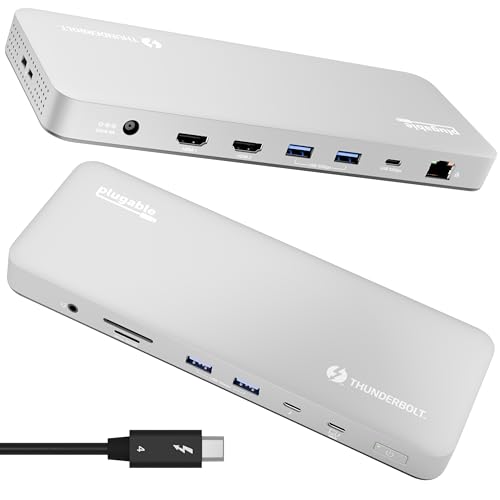 Plugable Thunderbolt 4 Dock for M4/M5 MacBook Air |
$199.95 | Buy | ||
| Best Budget |
 Anker Prime Docking Station |
$179.99 | Buy | |
| Best Overall |
 Belkin Connect Thunderbolt 4 Docking Station |
$149.99 | Buy |
Dell Pro Thunderbolt 4 Smart Dock SD25TB4
Lenovo ThinkPad Universal Thunderbolt 4 Dock
UGREEN 8-in-1 Thunderbolt 4 Docking Station
Plugable Thunderbolt 4 Dock for M4/M5 MacBook Air
Anker Prime Docking Station
Belkin Connect Thunderbolt 4 Docking Station
Top 3 Docking Stations Reviewed
#1 Dell Pro Thunderbolt 4 Smart Dock SD25TB4: Best Overall
Why We Picked It
The Dell Pro Thunderbolt 4 Smart Dock SD25TB4 ranks first because it lists the broadest display support in this guide: up to four 4K monitors across HDMI 2.1, DisplayPort 1.4, USB-C and Thunderbolt 4. It also lists 130W charging for Dell laptops and 96W for others.
The listing describes Thunderbolt 4 speed with dual data ports, daisy-chaining of up to six devices, remote Wi-Fi management through Dell Console and Intel AMT, and business-level security such as WPA3, PXE boot and MAC filtering. It measures 8.07 x 3.54 x 1.39 inches and weighs 1.28 pounds. Against the Lenovo, it lists similar display support with Dell-focused management.
Key Specifications
- Displays: up to four 4K monitors, per the listing
- Power: 130W for Dell, 96W for others
- Data: Thunderbolt 4, daisy-chain up to six devices
- Management: Dell Console and Intel AMT over Wi-Fi
- Size and weight: 8.07 x 3.54 x 1.39 inches, 1.28 pounds
| Pros | Cons |
|---|---|
|
|
Things to Consider
The 130W charging applies to Dell laptops, and other laptops receive 96W. The number of monitors depends on the laptop’s own display limits, so check your laptop before planning four screens. The management and security features matter most for IT-managed fleets.
Best For
Office and creative workers who use a Dell laptop or several monitors.
Skip It If
Skip it if you want a low-cost dock or only use one monitor.
See the Dell Pro Thunderbolt 4 Smart Dock SD25TB4 on Amazon.
#2 Lenovo ThinkPad Universal Thunderbolt 4 Dock: Best for Business Laptops
Why We Picked It
The Lenovo ThinkPad Universal Thunderbolt 4 Dock takes second place because its listing gives a clear port list: two DisplayPort 1.4, one HDMI 2.1, one Thunderbolt 4 downstream port, four USB 3.1 Gen 2 ports, one USB-C port, a 3.5 mm audio jack and Ethernet. It supports up to four 4K displays at 60Hz or a single 8K display at 30Hz.
A 135W slim-tip power adapter is included and the dock delivers up to 100W of dynamic charging to the notebook. Remote dock management through Dock Manager lets firmware updates happen without user action. It measures 6 x 3 x 1 inches and weighs 1.16 pounds. Against the Dell, it lists lower charging but a smaller body.
Key Specifications
- Video: two DisplayPort 1.4, one HDMI 2.1, one Thunderbolt 4
- USB: four USB 3.1 Gen 2, one USB-C
- Power: 135W adapter, up to 100W to the notebook
- Management: Dock Manager firmware updates
- Size and weight: 6 x 3 x 1 inches, 1.16 pounds
| Pros | Cons |
|---|---|
|
|
Things to Consider
The four-monitor figure depends on your laptop and its display limits, and 8K output is a single display at 30Hz. The 100W charge is dynamic, so it can vary with load. Confirm that your laptop supports Thunderbolt 4 or USB4.
Best For
ThinkPad owners and business users who want a well-documented dock.
Skip It If
Skip it if you need more than 100W of charging.
See the Lenovo ThinkPad Universal Thunderbolt 4 Dock on Amazon.
#3 UGREEN 8-in-1 Thunderbolt 4 Docking Station: Best for Windows and Mac Desks
Why We Picked It
The UGREEN 8-in-1 Thunderbolt 4 Docking Station takes third place because it lists three Thunderbolt 4 ports at 40Gbps, three USB-A 3.2 ports at 10Gbps, gigabit Ethernet and a 140W DC input, and it comes with a 140W GaN charger. The listing says it can charge a laptop at up to 85W.
It supports dual 4K displays at 60Hz or a single 8K display at 30Hz on Windows laptops, with different limits on some Macs. It measures 9.5 x 9.5 x 2.5 inches and weighs 3.09 pounds. Against the Lenovo, it lists more Thunderbolt ports but a heavier, larger body and lower charging.
Key Specifications
- Ports: three Thunderbolt 4 at 40Gbps, three USB-A at 10Gbps, gigabit Ethernet
- Display: dual 4K at 60Hz or single 8K at 30Hz on Windows
- Power: 85W charging, 140W GaN charger included
- Compatibility: Thunderbolt 4, Thunderbolt 3, USB4 or USB-C
- Size and weight: 9.5 x 9.5 x 2.5 inches, 3.09 pounds
| Pros | Cons |
|---|---|
|
|
Things to Consider
Display limits differ between Windows laptops and Macs, and the listing says the dock must be connected to the included charger for full charging. The 85W charge may be below what a large laptop needs. The body is bigger than most docks here.
Best For
Desk users who want several Thunderbolt ports and a charger in the box.
Skip It If
Skip it if you need a small dock for travel or more than 85W of charging.
See the UGREEN 8-in-1 Thunderbolt 4 Docking Station on Amazon.
How to Choose a Docking Station
Port Selection
Think about your desk. Count the monitors, drives, keyboards and cables you plug in, and choose a dock with enough USB-A and USB-C ports, an Ethernet port if you want wired networking, and the right video outputs. Thunderbolt 4 docks add daisy-chaining and fast data, while USB-C docks are simpler. Leave spare ports for the devices you will add later, and do not choose ports you will never use. A dock that covers today’s setup with a little spare room is usually enough, because laptops and monitors change more often than desks do.
Data and Display Support
Display support depends on both the dock and the laptop. A dock may list four monitors, but your laptop’s graphics and ports set the real limit. Check resolution and refresh rate in the listing, and your laptop’s manual. Macs have their own display limits, and the base chips support fewer screens. Some docks need drivers or specific modes for multiple monitors, so read the compatibility notes before buying. If you plan to run several monitors, confirm the cable types and the maximum resolution for each port, because the ports do not all share the same limits.
Power Rating and Pass-Through
A dock usually charges the laptop through the same cable. Compare the dock’s charging figure with your laptop’s charger rating, because a dock that delivers less will charge more slowly or not at all under load. Some docks include a large adapter, which is needed for full output. Check whether the highest charging is reserved for the manufacturer’s own laptops, as one listing here states. A dock with a large adapter in the box is also easier to live with, since you do not have to hunt for a compatible charger.
Length and Build
Docks vary from palm-sized boxes to heavy desk units. Think about where the dock will sit, and whether you carry it. Larger docks often run cooler and have more ports, but take space. Look at the cable that connects to the laptop, because a short cable limits placement. Treat durability claims in listings as manufacturer statements, and keep the dock ventilated. Place it where the cables reach without strain, and leave space around the vents so heat can escape, especially on a crowded desk.
Compatibility With Your Laptop or Phone
Check that your laptop supports Thunderbolt or USB4 where the dock needs it, and that it supports video output over USB-C. Operating system support differs, and listings name Windows, macOS and ChromeOS in different ways. A dock built for Macs may not use every feature on Windows, and the reverse. Read the compatibility list in the listing, and look for notes about drivers, firmware, operating system versions and any laptop models the maker lists as supported or unsupported. For on-the-go power, see our Power Banks.
How We Evaluate Docking Stations
We evaluate docking stations by comparing manufacturer specifications, Amazon listing information and available buyer ratings. We weigh each model on fit for laptop desk use, ports, data speed, display support, power delivery, size and weight, management and security features, safety information, warranty and value. Amazon does not supply ratings for these products through our data source, so the rankings rely on published specifications rather than review scores. Listings can be inconsistent or incomplete, so confirm ports, display limits and laptop compatibility for the exact model before you buy. Commissions do not affect rankings, and we update the guide when listings change.
Frequently Asked Questions
How many monitors can a docking station support?
It depends on the dock and the laptop. The Dell Pro Thunderbolt 4 Smart Dock SD25TB4 lists up to four 4K monitors, but your laptop’s graphics and ports set the real limit. Check your laptop’s manual before planning a multi-monitor desk, and confirm the resolution and refresh rate you want on each screen.
Do I need Thunderbolt for a docking station?
Not always. Thunderbolt 4 docks, such as the Lenovo ThinkPad Universal Thunderbolt 4 Dock, offer fast data and daisy-chaining and need a Thunderbolt or USB4 laptop. Other docks work over USB-C. Check what your laptop supports, since a dock cannot add a Thunderbolt port that the laptop does not have.
Will a dock charge my laptop?
Often yes. The Dell Pro dock lists 130W for Dell and 96W for other laptops, while the UGREEN dock lists 85W with its included charger. Compare the figure with your laptop’s charger rating, and expect slower charging if the laptop is working hard while docked.
Does a dock work with a MacBook?
Many do, with limits. The Plugable Thunderbolt 4 Dock for MacBook lists dual 4K support on newer chips and notes that some base chips support fewer displays. Check the compatibility notes for your Mac, including how many displays your chip supports, because that limit comes from the Mac and not from the dock.
Can I take a dock with me?
Compact docks can travel, but heavy desk units are better left in place. The Belkin Connect Thunderbolt 4 Docking Station lists a smaller body than the UGREEN. Check the weight and the power adapter before you plan to carry one, and remember that most desk docks need their own power adapter plugged into a wall outlet.
Final Verdict
The Dell Pro Thunderbolt 4 Smart Dock SD25TB4 is the strongest overall option in this guide because it lists the broadest display support, 130W charging for Dell laptops and business-level management and security features. If you want a clearly documented port list and a lighter body, the Lenovo ThinkPad Universal Thunderbolt 4 Dock is the alternative to consider. Whichever you choose, check your laptop’s ports and display limits, match the charging figure to your charger, and confirm the specifications on the product page. A dock that matches your laptop and your monitors will serve you better than the one with the longest port list, and a simple setup you understand is easier to keep working.
About the author

The GadgetsDiary editorial team compares portable power and charging products using manufacturer specifications and Amazon listing data. Read how we choose and rank products on our How We Review and Editorial Policy pages.